|
 |
|
|
|
|
| |
| |
| |
| |
| |
| |
| |
| |
| |
| |
| |
| |
| |
| |
| |
| |
| |
| |
| |
| |
| |
| |
| |
| |
| |
| |
| |
| |
| |
| |
| |
| |
| |
| |
|
|
|
» |
 |
|
| |
| |
| |
| |
| |
| |
| |
| |
| |
| |
| |
|
 TESTIMONIALS TESTIMONIALS
|
|
"... I have been using VIP Organizer for 2 years and find it to be the best software available for managing my task list. It is highly effective, user friendly and priced competitively...."
Ellis L. Marples, -
Stockholm, NJ
|
|
|
|
|
Authorization
|
|
|
|
|
|
|
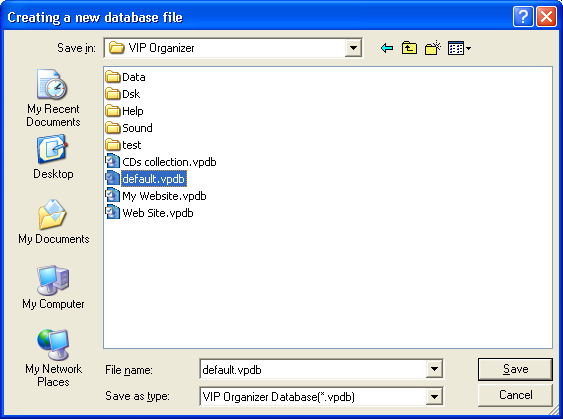
VIP Organizer: Save Database |
|
|
|
|
|
|
|
|



 button on the toolbar, or choose the File\Save Database menu item.